Time Grid and Timeline Layout
The scheduler can be laid out in two different ways - as a timegrid or a timeline.
The times rendered vertically, with one or more resources rendered horizontally as a time grid. Day views are great on small screens which can be dynamically switched to work week or full week views and even timeline views on bigger screens. Play around with the responsive API.
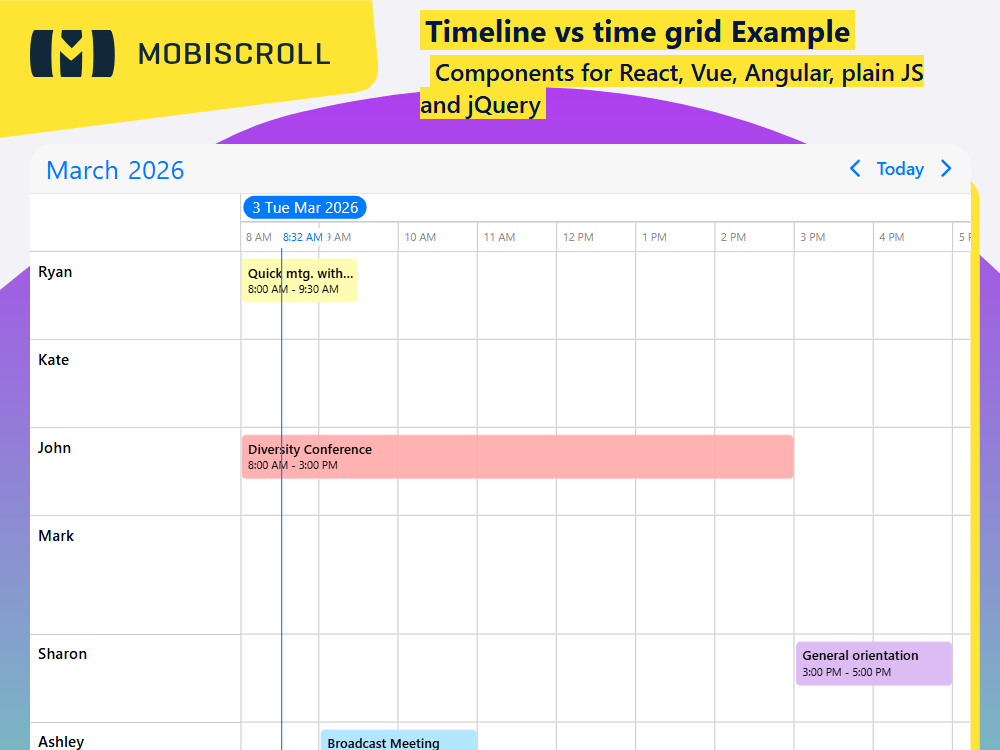
Alternatively you can render the times/days horizontally and the resources vertically as a timeline view. The timeline can easily accommodate a large number of resources thanks to the vertical scroll that is easy to understand for users. This plays well on larger screens and in landscape containers.
You can switch between the two modes by dynamically setting the event calendar options or you can set it up responsively using the responsive option. Eg. show a day grid on mobile and a timeline on desktop.
Demo
$('#mycalendar').mobiscroll().eventcalendar({
view: {
timeline : {
type: 'week'
}
},
resources: [{
id: 1,
name: 'Ryan',
color: '#e9ec12'
}, {
id: 2,
name: 'Kate',
color: '#239a21'
}, {
id: 3,
name: 'John',
color: '#ff0101'
}, {
id: 4,
name: 'Mark',
color: '#d8ca1a'
}, {
id: 5,
name: 'Sharon',
color: '#8f1ed6'
}, {
id: 6,
name: 'Ashley',
color: '#01adff'
}]
});
mobiscroll.setOptions({
  locale:  ,
  theme: ' ',
  themeVariant: ' '
});

$(function () {
  var calendar = $('#demo-timeline-time-grid')
    .mobiscroll()
    .eventcalendar({
      clickToCreate:  ,
      dragToCreate:  ,
      dragToMove:  ,
      dragToResize:  ,
      eventDelete:  ,
      view: {
        timeline: {
          type: 'week',
        },
      },
      resources: [
        {
          id: 1,
          name: 'Ryan',
          color: '#fdf500',
        },
        {
          id: 2,
          name: 'Kate',
          color: '#ff4600',
        },
        {
          id: 3,
          name: 'John',
          color: '#ff0101',
        },
        {
          id: 4,
          name: 'Mark',
          color: '#239a21',
        },
        {
          id: 5,
          name: 'Sharon',
          color: '#8f1ed6',
        },
        {
          id: 6,
          name: 'Ashley',
          color: '#01adff',
        },
      ],
    })
    .mobiscroll('getInst');

  $.getJSON(
    'https://trial.mobiscroll.com/timeline-events/?callback=?',
    function (events) {
      calendar.setEvents(events);
    },
    'jsonp',
  );
});
<div id="demo-timeline-time-grid"></div>