Day, Week, Month & Year Views
Set up day, week, month or year views.
For certain views you can customize the visible days along with the scale of the timeline through the timeline object under the view option. You can control the days shown (eg. Weekdays), set the time scale (eg. 30 minutes) and set the labels shown (eg. every 15 minutes).
- Specify the first and last visible weekdays - Use the
startDayandendDayproperties - Set the visible time range - Use the
startTimeandendTimeproperties - Shift the visible time window - Use the
startTimeandendTimeproperties to include ranges that extend into the previous or next day - Control the granularity of the timeline - Use the
timeCellStepandtimeLabelStepproperties - Week numbers - Controlled through the
weekNumbersproperty - Real time positioning or event listing - Set
eventDisplay: 'fill'if you want to list the events on a daily basis rather than have them positioned with minute precision
Interested in the time grid? Check out how you can configure the vertical time rendering →
Demo
Display days from
to
This defines which weekdays to display. To set the first day of the week, use the
firstDay option instead.
Show a daily summary of events
Show a daily summary of events
Show week numbers
Show week numbers
Show current time indicator
Display hours from
to
Set the time scale to
Show time labels for every
<script setup>
const myView = {
timeline: {
type: 'week ',
startDay: 1 ,
endDay: 5 ,
eventDisplay: 'fill',
weekNumbers: false ,
weekNumbers: false ,
currentTimeIndicator: true
}
}
</script>
<template>
<MbscEventcalendar :view="myView" />
</template>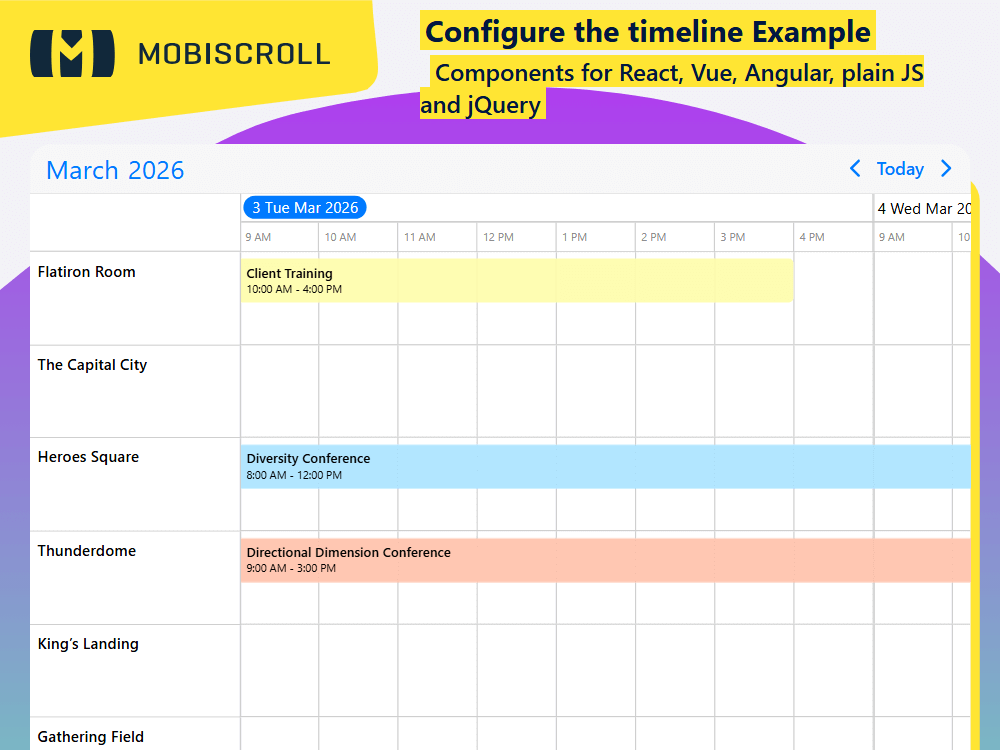
SFC JSSFC TS
<script setup>
import { getJson, MbscEventcalendar, setOptions  } from '@mobiscroll/vue'
import { onMounted, ref } from 'vue'

setOptions({
  locale:  ,
  theme: ' ',
  themeVariant: ' '
})

const myEvents = ref([])

const myResources = ref([
  {
    id: 1,
    name: 'Flatiron Room',
    color: '#fdf500'
  },
  {
    id: 2,
    name: 'The Capital City',
    color: '#ff0101'
  },
  {
    id: 3,
    name: 'Heroes Square',
    color: '#01adff'
  },
  {
    id: 4,
    name: 'Thunderdome',
    color: '#239a21'
  },
  {
    id: 5,
    name: 'King’s Landing',
    color: '#ff4600'
  },
  {
    id: 6,
    name: 'Gathering Field',
    color: '#8f1ed6'
  }
])

const myView = {
  timeline: {
    type: 'week',
    startDay: 1,
    endDay: 5,
    timeCellStep: 60,
    timeLabelStep: 60
  }
}

onMounted(() => {
  getJson(
    'https://trial.mobiscroll.com/daily-weekly-events/',
    (events) => {
      myEvents.value = events
    },
    'jsonp'
  )
})
</script>

<template>
  <MbscEventcalendar :clickToCreate="" :dragToCreate="" :dragToMove="" :dragToResize="" :eventDelete="" :view="myView" :data="myEvents" :resources="myResources" />
</template>
<script setup lang="ts">
import { getJson, MbscEventcalendar, setOptions  } from '@mobiscroll/vue'
import type { MbscCalendarEvent, MbscEventcalendarView, MbscResource } from '@mobiscroll/vue'
import { onMounted, ref } from 'vue'

setOptions({
  locale:  ,
  theme: ' ',
  themeVariant: ' '
})

const myEvents = ref<MbscCalendarEvent[]>([])

const myResources = ref<MbscResource[]>([
  {
    id: 1,
    name: 'Flatiron Room',
    color: '#fdf500'
  },
  {
    id: 2,
    name: 'The Capital City',
    color: '#ff0101'
  },
  {
    id: 3,
    name: 'Heroes Square',
    color: '#01adff'
  },
  {
    id: 4,
    name: 'Thunderdome',
    color: '#239a21'
  },
  {
    id: 5,
    name: 'King’s Landing',
    color: '#ff4600'
  },
  {
    id: 6,
    name: 'Gathering Field',
    color: '#8f1ed6'
  }
])

const myView: MbscEventcalendarView = {
  timeline: {
    type: 'week',
    startDay: 1,
    endDay: 5,
    timeCellStep: 60,
    timeLabelStep: 60
  }
}

onMounted(() => {
  getJson(
    'https://trial.mobiscroll.com/daily-weekly-events/',
    (events) => {
      myEvents.value = events
    },
    'jsonp'
  )
})
</script>

<template>
  <MbscEventcalendar :clickToCreate="" :dragToCreate="" :dragToMove="" :dragToResize="" :eventDelete="" :view="myView" :data="myEvents" :resources="myResources" />
</template>