

















JavaScript Timeline

Updated on Oct 30, 2026

JavaScript Resource Timeline Scheduler for Planning

Build horizontal scheduling and planning interfaces with time across the screen and resources in rows. Plan jobs, shifts, equipment and project work from hours to months or years with configurable views, drag and drop and your own application data.

Loading the live demo...

Add the Timeline to a plain JavaScript page or a bundled web application without adopting a frontend framework.

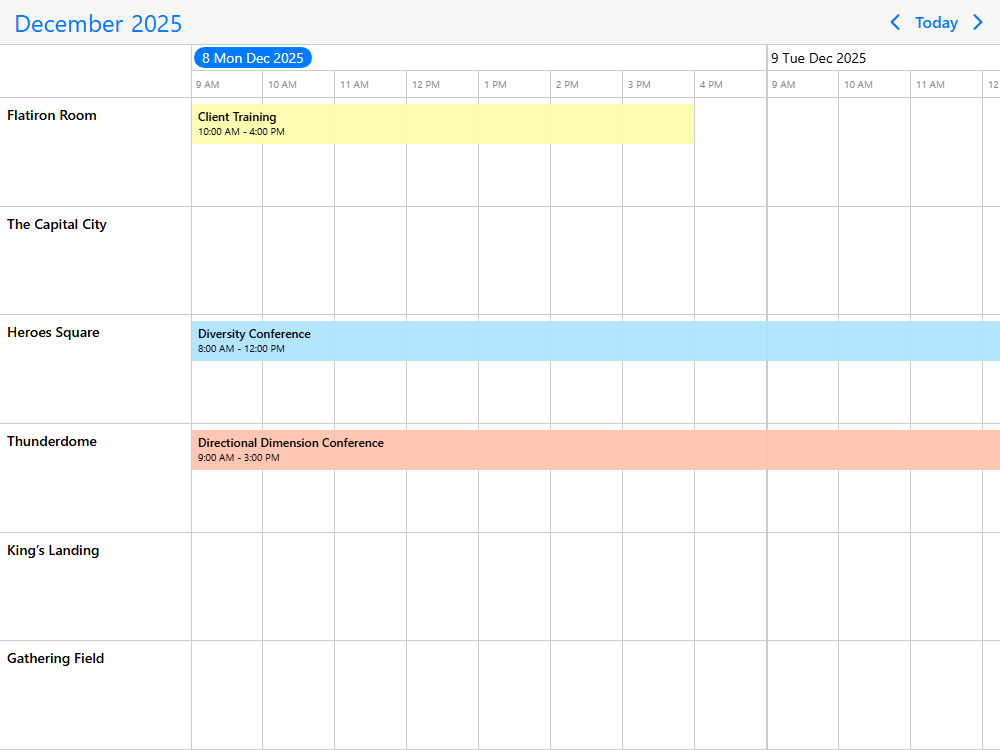
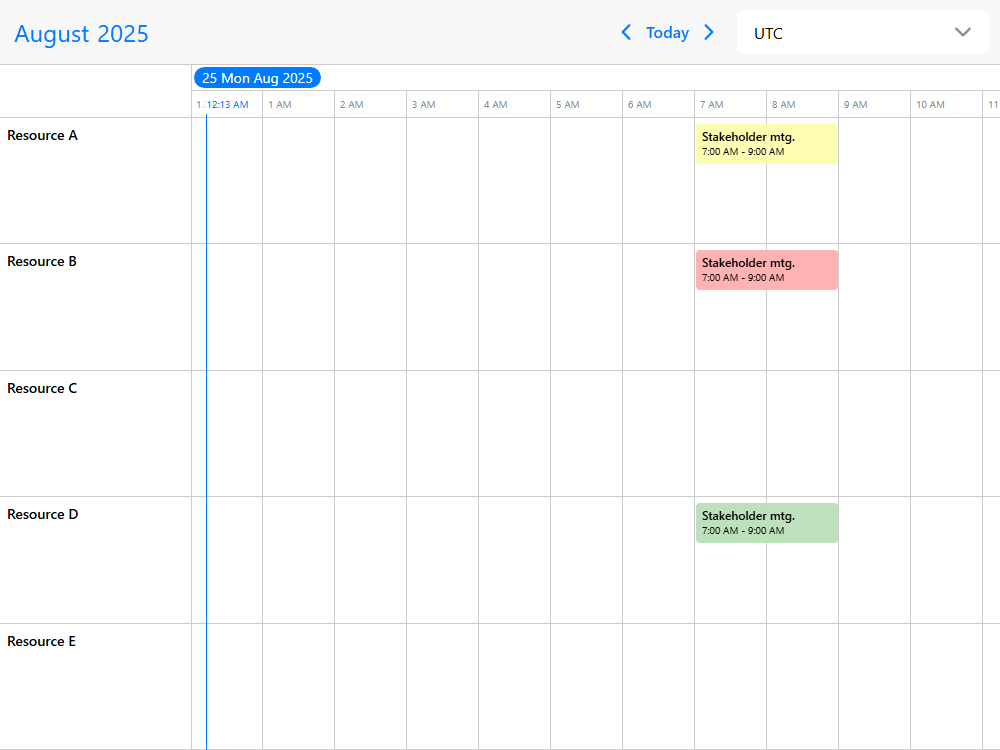
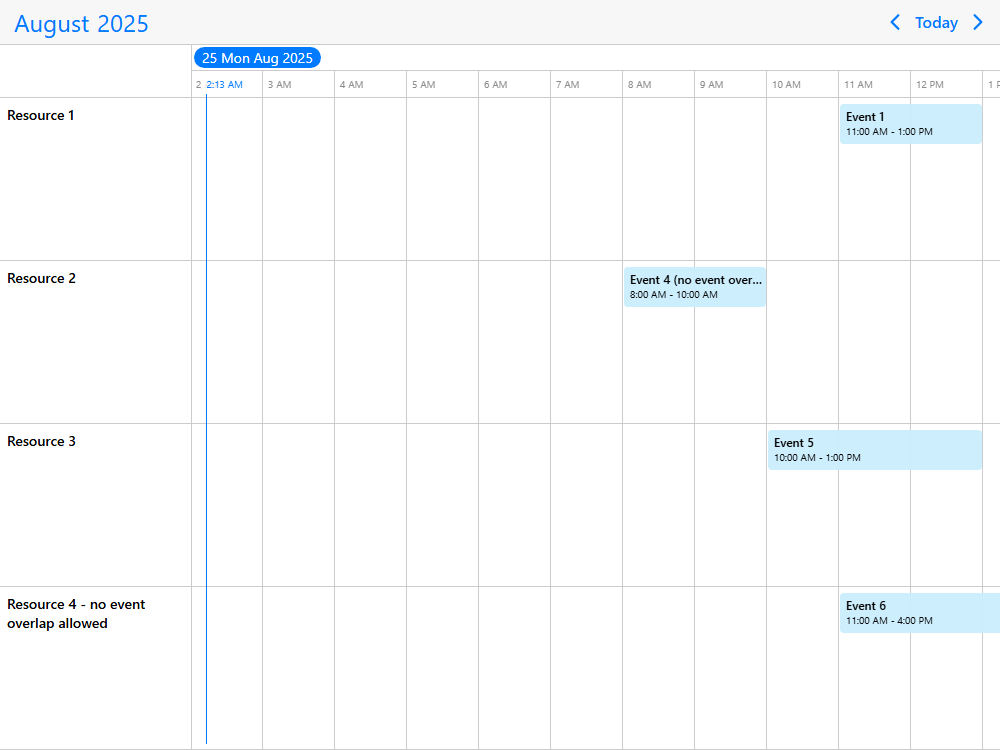
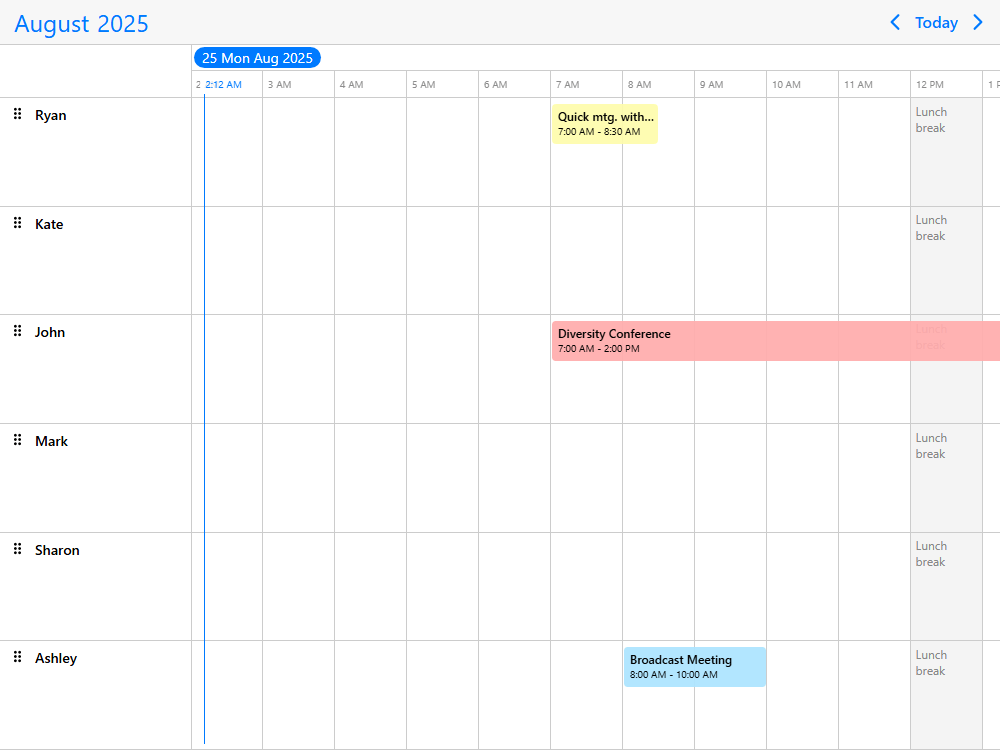
The Mobiscroll Timeline is the horizontal scheduling view of the Event Calendar component. Time runs from left to right, while resources such as people, teams, rooms or equipment appear as rows. Unlike the Scheduler's vertical time grid, the Timeline makes it natural to compare assignments across resources and follow work over days, weeks, months or longer periods. It is a configurable UI toolset for building planning experiences, not a predefined resource-management application.

  • ServiceTitan logo
  • JLL logo
  • Telstra Health logo
  • Zucchetti logo
  • Yardi logo
  • Verisure logo
  • Planon logo
  • Hays logo
  • ConnectWise logo
  • A.WFM logo
  • Ad Astra Information Systems logo
  • Alobees logo
  • ANZ Bank New Zealand logo
  • Arryved logo
  • Asolvi logo
  • Avrios logo
  • BlueFolder logo
  • Breezy logo
  • BRND logo
  • CareMaster logo

Timeline highlights

  • Horizontal planning from hours to years

    Show a resource schedule across hours, days, weeks, months, quarters or years. Adjust the visible range and zoom level so users can switch between detailed work and a wider planning overview.

  • Resource hierarchies and shared assignments

    Organize people, teams, sites or equipment into expandable resource groups. Show one event against multiple resources and adapt the resource rows to the structure of your application.

  • Interactive schedules and task relationships

    Create, move and resize events on the timeline. Display progress and links between related tasks, with control over the editing interactions your users are allowed to perform.

  • AI-ready developer tooling

    Use Mobiscroll's MCP server, coding-agent skills and AI-readable examples to give AI coding assistants version-specific Timeline APIs and framework-aware implementation context.

Getting started

Install the Mobiscroll CLI once, then run the configuration command inside your JavaScript project. It configures access to Mobiscroll's private npm registry and installs the package.

Terminal
npm install -g @mobiscroll/cli
mobiscroll config javascript

Add a <div id="timeline"></div> to your page. In an application using a bundler, import the Event Calendar initializer and its styles:

JS
import { eventcalendar } from '@mobiscroll/javascript';
import '@mobiscroll/javascript/dist/css/mobiscroll.min.css';

const weekStart = new Date();
weekStart.setDate(weekStart.getDate() - ((weekStart.getDay() + 6) % 7));
weekStart.setHours(0, 0, 0, 0);
const day = (n) => new Date(weekStart.getFullYear(), weekStart.getMonth(), weekStart.getDate() + n);

const resources = [
  { id: 1, name: 'Installation team' },
  { id: 2, name: 'Inspection team' },
  { id: 3, name: 'Equipment' }
];
const events = [
  { id: 1, title: 'Site preparation', start: day(0), end: day(1), allDay: true, resource: 1 },
  { id: 2, title: 'Equipment installation', start: day(1), end: day(3), allDay: true, resource: [1, 3] },
  { id: 3, title: 'Quality inspection', start: day(3), end: day(4), allDay: true, resource: 2 }
];

eventcalendar('#timeline', {
  view: { timeline: { type: 'week', resolutionHorizontal: 'day' } },
  selectedDate: weekStart,
  resources,
  data: events,
  dragToCreate: true,
  dragToMove: true,
  dragToResize: true
});

A plain HTML page does not need a bundler or CLI: include a downloaded Mobiscroll JavaScript and CSS package and initialize through mobiscroll.eventcalendar() instead. See the JavaScript installation guide and Timeline documentation.

The code above is an introductory planning scenario. For a different layout or workflow, explore the full Timeline demo gallery below and start from the source of the closest working example.

Browse the demos

What you can build with the Timeline

Build horizontal planning interfaces that make work and resource availability understandable at a glance. The Timeline is a set of configurable views and interactions: start with the work your users need to plan, then adapt the resources, time scale, event content and editing rules to your application.

Project & timeline planning

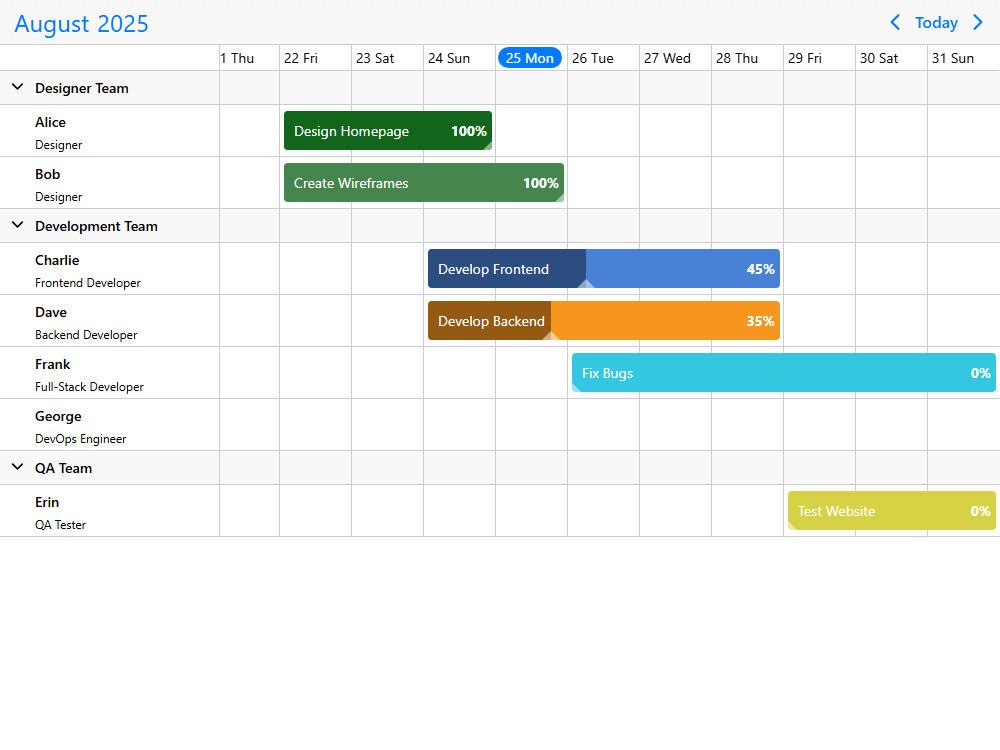
Build project timelines that show tasks, milestones and work spanning several days or months. Display links between related tasks, add progress indicators and let users zoom between detailed and high-level plans (linked tasks, task progress, zoom levels). Useful for project, construction and delivery-planning products that need a visual schedule without imposing a fixed project workflow.

Resource & asset planning

Build resource calendars for equipment, rooms, vehicles and teams with a horizontal time axis. Group resources by site or department, compare their bookings and show summary information alongside the plan (resource hierarchy, compare resources, resource group summaries). Useful for booking and allocation interfaces in B2B software.

Operations & production planning

Plan production runs, operational jobs or equipment usage across work periods. Show shifts or tasks under resource rows, indicate unavailable periods and display time buffers between assignments (tasks within shifts, shift slots, time buffers). Adapt the schedule to your application's production and operational rules.

Workforce & shift planning

Create workforce planning timelines with employees or teams in rows and shifts extending across days. Use scheduling interactions to reassign work, display recurring shifts and build specialized views for industries with changing staff coverage (employee shifts, restaurant shifts, recurring shifts).

Job scheduling & dispatch

Build dispatch boards and work-order timelines for technicians, crews or vehicles. Place work from an unassigned pool onto resources, move jobs to another team and show the sequence of assignments across a wider period (work-order scheduling, work-order assignment, transport planning).

Timeline capabilities

Mobiscroll Timeline combines the horizontal scheduling layout with controls for resources, event interactions and rendering. Use these building blocks together to create a resource scheduler, planning board or Gantt-style interface around your own data instead of adopting a predetermined process.

  • Horizontal time scales and zoom

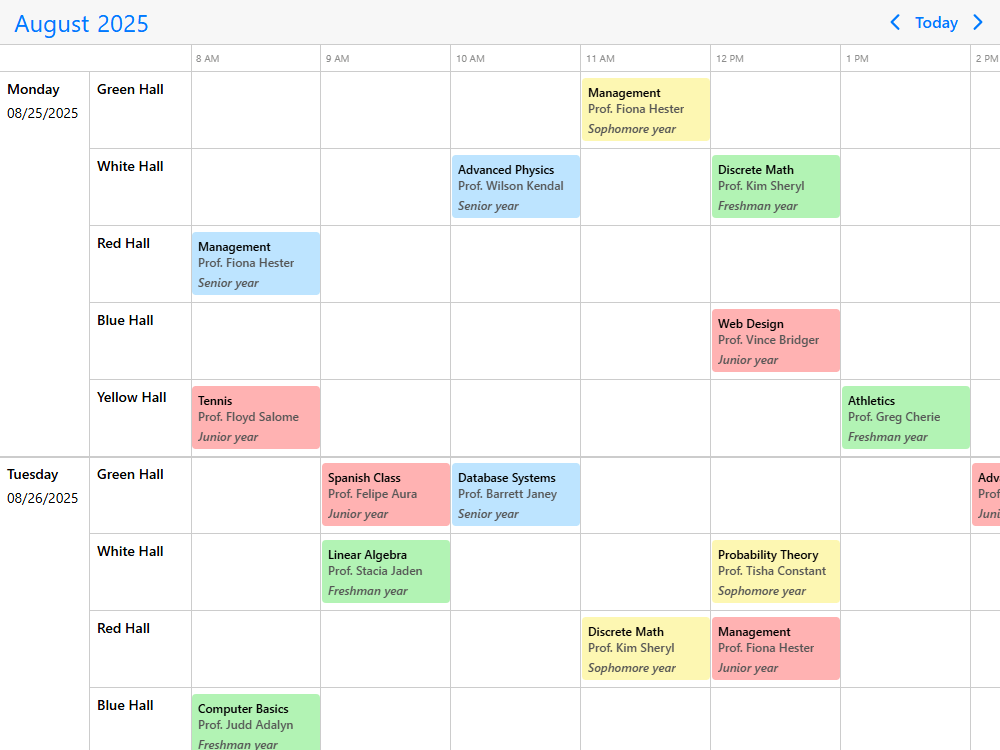
    Display time from left to right in day, week, month or year views, with time resolution ranging from hours to years. Configure the visible range and switch between zoom levels, such as daily planning and a multi-month overview (Timeline views, time scales, zoom controls).

  • Resource rows and hierarchies

    Show people, teams or assets as rows, and nest them in multi-level hierarchies such as site, building and room. Allow users to expand groups, find resources and reorder the list where the workflow requires it (resource groups, resource filtering, reordering resources).

  • Assignments across multiple resources

    Display an event against one resource or several resources while retaining the shared event data. Build assignment flows that let users put work onto a team, remove an assignment or assign a person from an external list (assign and unassign work, assign people to events, resource data and assignments).

  • Gantt-style task links and progress

    Draw connections and directional arrows between events, display task progress and customize the information shown inside each task bar (linked events, progress indicators, custom task rendering). These are visual building blocks for project timelines; automatic dependency rescheduling and critical-path calculations are application-side concerns.

  • Drag and drop with interaction control

    Create events and drag them along the timeline, between resources or across different views. Resize durations and control which changes are permitted for a particular event or resource (drag editing, interaction restrictions, external event lists).

  • Shift slots and scheduling restrictions

    Represent work shifts as slots and display tasks within longer-running assignments. Mark time off and unavailable intervals, show buffers before or after events and configure the restrictions that apply when users edit the schedule (shift slots, resource availability, overlap restrictions, buffer time).

  • Resource comparison and visual summaries

    Compare a selected resource with the rest of the plan, display aggregate summaries for resource groups and add custom details to resource rows and footers (compare resources, aggregated summaries, resource details). Use these views to explain allocation and workload; your application can supply the underlying capacity calculations.

  • Custom event and cell rendering

    Adapt event bars, row heights, headers, footers and timeline cells to your own domain. Show progress, status, buffers or resource-specific information in the schedule instead of forcing every workflow into identical event labels (event appearance, custom cells, variable event heights, timeline headers and footers).

  • Recurring and multi-day work

    Show work that spans multiple days and events that repeat daily, weekly, monthly or yearly. Customize how overlapping events are displayed or switch to a daily event-listing layout when a summarized view is more useful (recurring events, overlapping-event display, daily event listing).

  • Connect your own data and scale the view

    Populate the Timeline from your API, request events as users navigate and load resources while scrolling. Virtualized rendering manages what is visible horizontally and vertically, supporting resource-heavy schedules and longer planning ranges (remote event data, on-demand events, load resources on scroll, large data sets).

  • Time zones and localization

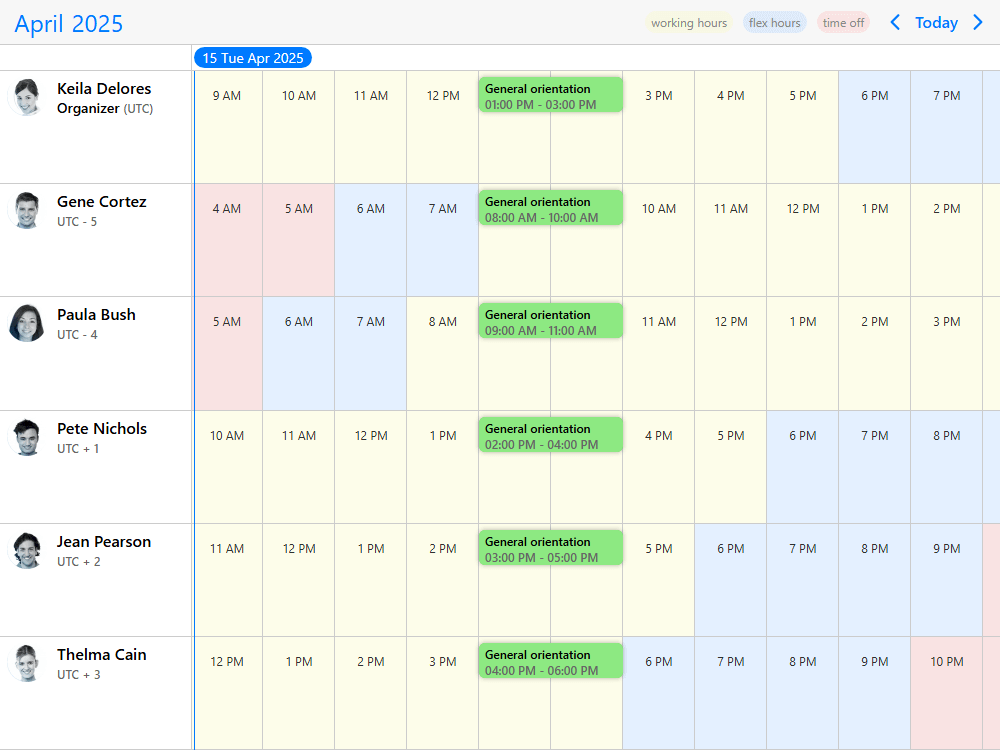
    Display dates and event times for international teams, including views that show working hours for people in different time zones. Localize labels and date formats, support right-to-left layouts and use the documented Gregorian, Jalali and Hijri calendar options (time-zone meeting planner, localized timeline, calendar systems).

  • Mobile use and accessibility

    Configure a more focused timeline on smaller screens and use the component's touch and keyboard interactions to support different devices. Mobiscroll provides keyboard and screen-reader support and documents its current WCAG 2.2 A and AA coverage; consult the Event Calendar accessibility guide and accessibility support details for the applicable limitations.

  • Themes and printing

    Choose an iOS, Material or Windows theme and adapt the Timeline with custom styling. Print the current view with the separately licensed print module when your license includes it (print and PDF example, printing documentation).

AI Tooling

Mobiscroll provides AI Tooling for teams building scheduling and planning interfaces with coding assistants. Its hosted MCP server can supply API context for the Mobiscroll version in your project. Agent skills, framework-specific instructions and AI-readable documentation help assistants distinguish Timeline view configuration, event data, resource hierarchies and editing callbacks when adapting examples.

For plain JavaScript, ask an assistant to configure mobiscroll.eventcalendar() or the JavaScript ESM initializer with view.timeline, your resource data and your event API. Example request: "Build a JavaScript horizontal resource scheduler with equipment in rows and jobs over a two-week period. Use Mobiscroll's current Timeline API, allow drag and drop, and show where my existing API connects."

Claude Code and Codex can use Mobiscroll's plugin and UI skills with its MCP connection. Cursor and GitHub Copilot can use framework-specific instruction files and optionally connect to the MCP server. Follow the AI Tooling setup guide for the supported setup of each assistant.

Mobiscroll documentation and demos are also available in AI-readable formats, including source code and implementation notes. An assistant can use these to find the correct patterns, but developers should still test the resulting planning and scheduling behavior against their application's rules.

AI Tooling setup guide

Timeline demos

Explore working JavaScript Timeline examples for horizontal resource scheduling, project planning, shift management, resource hierarchies and drag-and-drop assignment.

Each demo includes a working implementation and code you can inspect. Start with the example closest to your resource or planning problem, then adapt its data, interactions and rendering. The gallery below contains the Timeline examples available for this framework.

Common use cases

Configuring the view

Your data and external calendars

The Timeline renders the event and resource information supplied by your application. You can use your own data and services without connecting any external calendar account.

Need to bring in your users' calendars? Mobiscroll Connect is the separate calendar connectivity layer for Google Calendar, Outlook, Apple Calendar and CalDAV. It provides account connection, authentication, normalized calendar data and synchronization. Mobiscroll Connect is sold separately and is not required to use the Timeline.

Explore Mobiscroll Connect

Frequently asked questions

What is a resource timeline scheduler?

A resource timeline scheduler displays time horizontally and resources vertically, so users can see when people, teams, rooms or equipment are booked or assigned. Mobiscroll's Timeline is a configurable view of its Event Calendar component for building this kind of resource scheduling and planning interface.

What is the difference between the Timeline and Scheduler views?

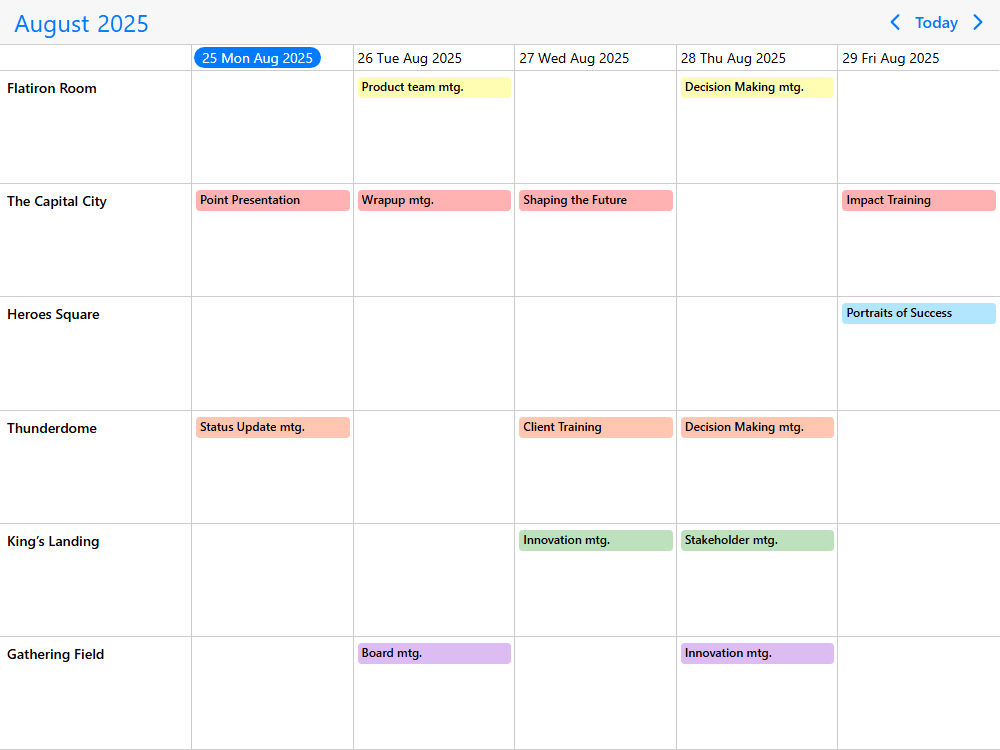
The Timeline displays resources in horizontal rows with time running left to right, which is useful for resource allocation and work spanning many days or months. The Scheduler is a vertical time grid organized around hours and days, with resources shown as columns. Both belong to the Event Calendar component. Compare the layouts in the Timeline and time-grid example.

Can I use Timeline as a horizontal scheduler or resource calendar?

Yes. Use the Timeline view to create a horizontal schedule with resource rows, time columns, draggable events and configurable ranges. It is suitable for resource calendars, allocation boards and planning views, including schedules that extend across multiple weeks or months (range configuration).

Is Mobiscroll Timeline a Gantt chart?

It can be used to build a Gantt-style project timeline: display task bars, progress indicators, grouped resources and links between events (task connections, progress display). It is a UI component, not a complete project-management engine with automatic dependency rescheduling, critical-path analysis or resource-leveling algorithms.

Can I group resources into teams or hierarchies?

Yes. Resources can have nested child resources, allowing a hierarchy such as region, site, building and room. You can expand or collapse groups, customize resource rendering and reorder resources through the UI (resource hierarchies, resource ordering).

Can an event appear on more than one resource row?

Yes. A single event can reference multiple resources and appear in their respective rows while remaining one event in your data. This helps when the same job requires people and equipment at once; see resource assignments.

Can I create and move events by dragging them?

Yes. Configure event creation, moving and resizing through drag and drop, including moving events between resource rows and dragging work from outside the timeline (drag editing, external drag and drop). You can restrict interactions by event and resource.

Does the Timeline calculate capacity or prevent double bookings automatically?

The Timeline can visualize resource assignments, display aggregate summaries and apply UI restrictions for invalid time ranges or overlapping events (resource summaries, overlap restrictions). Your application supplies its authoritative capacity rules and validates concurrent changes when saving; the Timeline is not an automatic optimization or booking backend.

Can I connect my existing API and database?

Yes. Pass your own events and resources to the component, load them from a remote API and request data as users navigate or scroll. Handle changes using event callbacks to connect the Timeline to your application's persistence logic (remote API events, on-demand loading).

Can the Timeline handle hundreds of resources or large schedules?

The Timeline uses virtualized horizontal and vertical rendering, and supports loading event or resource data as it becomes relevant. This is designed for resource-heavy schedules without rendering every row and date at once (load resources on scroll, large data example). Performance still depends on the application's data and custom rendering.

Does the Timeline work on phones and tablets?

Yes. The Timeline supports touch interaction and responsive configuration. You can show a shorter date range or a different layout on smaller screens while keeping more detailed resource planning on larger displays (Timeline view configuration).

Is the Timeline accessible?

Mobiscroll provides keyboard and screen-reader support and documents its alignment with WCAG 2.2 A and AA criteria, but does not claim full AA compliance. For drag-and-drop workflows, provide an accessible alternative such as an edit dialog or assignment form. See Event Calendar keyboard support and WCAG support and limitations.

Is Mobiscroll Timeline free or open source?

No. The Timeline is part of commercially licensed Mobiscroll UI, with a free trial to evaluate it. Internal-project and multi-customer SaaS licensing are different; see Mobiscroll pricing.

Can I install it from the public npm registry?

No. Mobiscroll packages are distributed through Mobiscroll's private npm registry, configured through the Mobiscroll CLI. A downloaded package is also available for supported installation paths. Use the installation guide linked in Getting started for the chosen framework.

Can AI coding assistants help build with Timeline?

Yes. Mobiscroll provides an MCP server, agent skills and framework-specific guidance, along with AI-readable documentation and demo code. The AI Tooling guide describes setup for Claude Code, Codex, Cursor and GitHub Copilot. Generated scheduling logic and UI behavior should be tested in your application.

Do I need Mobiscroll Connect for Timeline?

No. The Timeline uses your own event and resource data. Mobiscroll Connect is a separate product, sold separately, for connecting Google, Outlook, Apple Calendar and CalDAV accounts when external calendar connectivity is needed.

Can I use Timeline in a SaaS product?

Yes. Mobiscroll offers Calendaring for SaaS licensing for products delivered to multiple customers as well as licenses for internal projects. Compare the Mobiscroll UI license options.

Can I migrate from FullCalendar, Bryntum or DHTMLX?

Mobiscroll provides migration guides covering component configuration, event data and implementation patterns: FullCalendar, Bryntum and DHTMLX. Check the relevant features rather than assuming every scheduling or project-management workflow maps one to one.

Can I use Timeline without a framework or bundler?

Yes. A plain HTML page can include a downloaded Mobiscroll JavaScript and CSS package, then initialize the Timeline with mobiscroll.eventcalendar(). No frontend framework, bundler or CLI is required for this path (plain JavaScript installation).

Licensing

The Timeline is a view of the Event Calendar component in Mobiscroll UI. Internal projects use the appropriate Scheduling & calendaring or broader UI license; software delivered to multiple customers can use Calendaring for SaaS. Licensing and optional features such as the print module vary by package. Compare Mobiscroll UI licenses.

Ready to build a resource planning timeline?

Start with the working Timeline example above, explore the demos and use their source code as a starting point, or follow the AI Tooling guide to work with a coding assistant. The Timeline API and view documentation is available when you need to configure a specific layout or interaction.

Using a framework?

Duplicate Session

You have signed in on a different machine. To keep everything in sync, you have been signed out of this session.

If you need to invite team members, manage seats and accounts you can do it from the licenses page.

Duplicate Session

We noticed you are logged in on a different machine and have closed your old session.

If you need to invite team members, manage seats and accounts you can do it from the licenses page.